No snooze alarm: an alarm you have to get up for
By WakeOps ·
A no snooze alarm has no button that buys you nine more minutes: the only way to end it is to get up and do what it asks. WakeOps has no snooze button at all, and its alarm keeps coming back until you finish your mission or the wake-up window closes (30 minutes on Standard and Persistent, 20 on Maximum).
What "no snooze" should mean
Hiding the snooze button is easy. Some alarms that do it still stop with a single tap, which turns a nine-minute delay into a full return to sleep. A real no snooze alarm replaces the dismissal with a task, so the cheap exit is gone rather than relabeled.
Be wary of any app that calls itself impossible to ignore. On an iPhone you can always power the phone off, and some apps' alarms make no sound on silent. What matters is how an alarm behaves when you use it normally, half asleep, with no plan to cheat. If you are working on the habit rather than choosing an app, how to stop snoozing is a seven-day plan.
Every way out, and what WakeOps does
| What you try | What happens |
|---|---|
| Swipe the notification away | It comes back |
| Lock the phone or close the app | It comes back |
| Press the Stop button iOS shows (iOS 26 and later) | It does not count; the alarm rings again |
| Open the mission, then leave it half done | The alarm is back within seconds |
| Finish the mission | The alarm stops and the morning is recorded |
| Do nothing at all | It keeps returning until the window closes, then the morning is recorded as missed |
With Ring during missions on (the default for every alarm), the sound keeps playing while you work and stops on the win. Voice missions are the exception: they go quiet while they listen, because the microphone has to hear you.
How long it keeps coming back
You choose how hard the alarm pushes in Settings, under Wake-up enforcement. The window is also the deadline for your morning to count.
- Standard ("Firm, but forgiving"): comes back for 30 minutes.
- Persistent ("Keeps coming back until you're up"): 30 minutes, returning more often.
- Maximum ("Least room to negotiate"): the shortest window, 20 minutes, with the densest alerts.
Maximum's window is shorter on purpose: it gives you less room to fall back asleep, not a longer morning in which to fail.
iOS 26 compared with iOS 17.6 to 18
| What changes | iOS 26 and later | iOS 17.6 to 18 |
|---|---|---|
| How the alarm arrives | A system alarm, the same kind the Clock app uses | A chain of Time Sensitive notifications |
| Phone on silent | Rings | Makes no sound |
| Focus on | Rings | Gets through |
| The easy exit | iOS always shows a Stop button; pressing it does not finish the mission | Swiping a notification away does not finish the mission |
If your iPhone is on iOS 18 or earlier, keep the ringer on. For a flight, an exam or a shift, add a backup alarm in the Clock app as well: Apple says Clock alarms are not affected by the Ring/Silent switch or silent mode.
Choose the mission that removes your excuse
A no snooze alarm is only as strong as its mission. Choose by where your mornings fail:
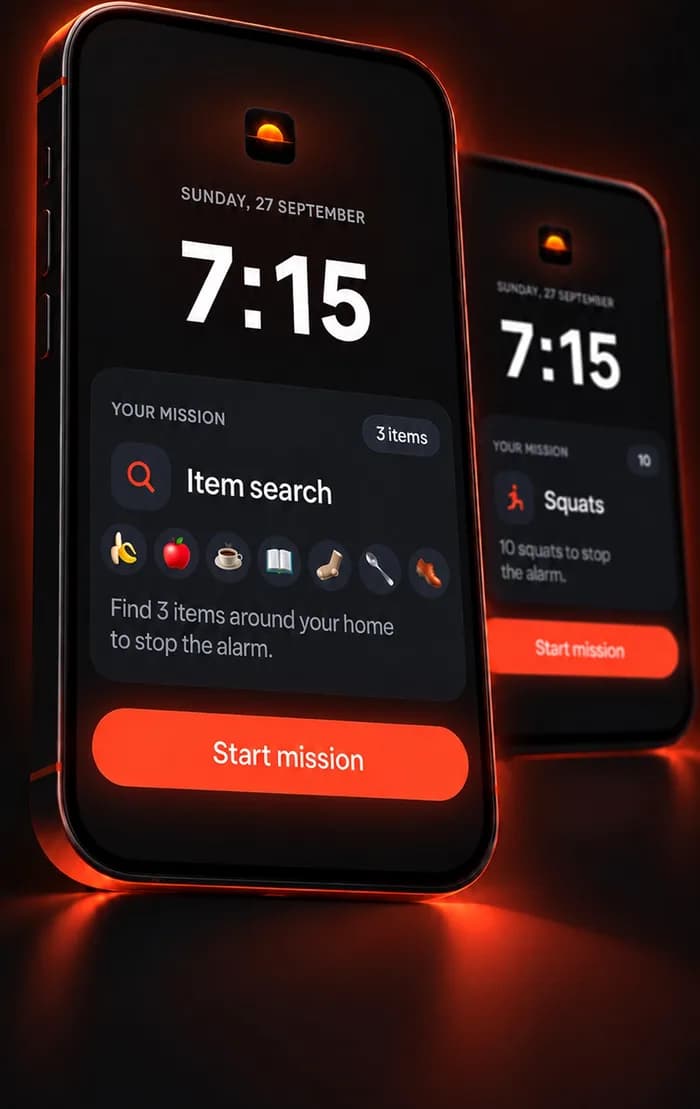
- You stay in bed: Item search names three everyday things by default, from a pool that starts with the bathroom sink, the toilet and the kitchen sink, and waits until the camera sees each one.
- You need a jolt: Squats are counted by the camera, 10 by default, and half reps do not count.
- You share a room, or the room is dark: Math and the seven other puzzles work on the screen alone.
- You win, then lie back down: add a still-awake check, a second alarm 5, 10 or 15 minutes after the win.
Not sure? The mission picker suggests one from a few questions.
Try it before you depend on it
Every mission has Try it now: the real ringing screen, sound and success screen, recording nothing. Rehearsals are free. WakeOps itself is free to download, and setting an alarm needs WakeOps Premium, an in-app subscription.
Common questions
Can I snooze a WakeOps alarm?
No. There is no snooze button. If you want ten more minutes, set the alarm ten minutes later and keep it.
Can I switch an alarm off before it rings?
Yes. Switching an alarm off or deleting it is always allowed, with or without a subscription. Once it is ringing, finishing the mission is what resolves that morning.
What if I physically can't do the mission?
If a mission cannot run at all, for example because camera access was refused, WakeOps offers Math straight away. You can also switch on Offer Math when stuck for an alarm, which offers Math after 15 seconds on a mission.
Will it ring when my phone is on silent?
On iOS 26 and later, yes. On iOS 17.6 to 18 its alarms are Time Sensitive notifications, which make no sound on silent.
Sources
- How to set and change alarms on your iPhone, Apple Support